
Getting Started
One-Click Installation
Use QingFeng's self-developed toolbox for quick installation without complicated operations, solving various problems in one stop.
Manual Installation
Windows
Steam / Epic Games / itch.io
Download server configuration file
Open configuration folder
After downloading, press
Win+Rto open Run, paste the following content and press Enter:%APPDATA%\..\LocalLow\Innersloth\Among UsWindows will open a folder after confirmation.
The folder generally contains the following contents:
com.unity.addressables
Sentry
Unity
persLog.log
player.amogus
Player.log
regionInfo.json
sentry-unity.lock
settings.amogus
Replace configuration file
Replace the downloaded configuration file into this folder, and select Overwrite if prompted.
Normally, you should see an overwrite prompt here. If not, you may need to check if the downloaded file name is
regionInfo.json, or if you've opened the correct folder.Installation complete
Microsoft Store
This installation method is from NikoCat233, Feng Among Us Server does not provide technical support for this method.
Download server configuration file
Open configuration folder
After downloading, press
Win+Rto open Run, paste the following content and press Enter:%userprofile%\AppData\Local\Packages\Innersloth.AmongUs_fw5x688tam7rm\SystemAppData\wgsAfter opening the folder, find the folder named with long numbers + letters and open it.
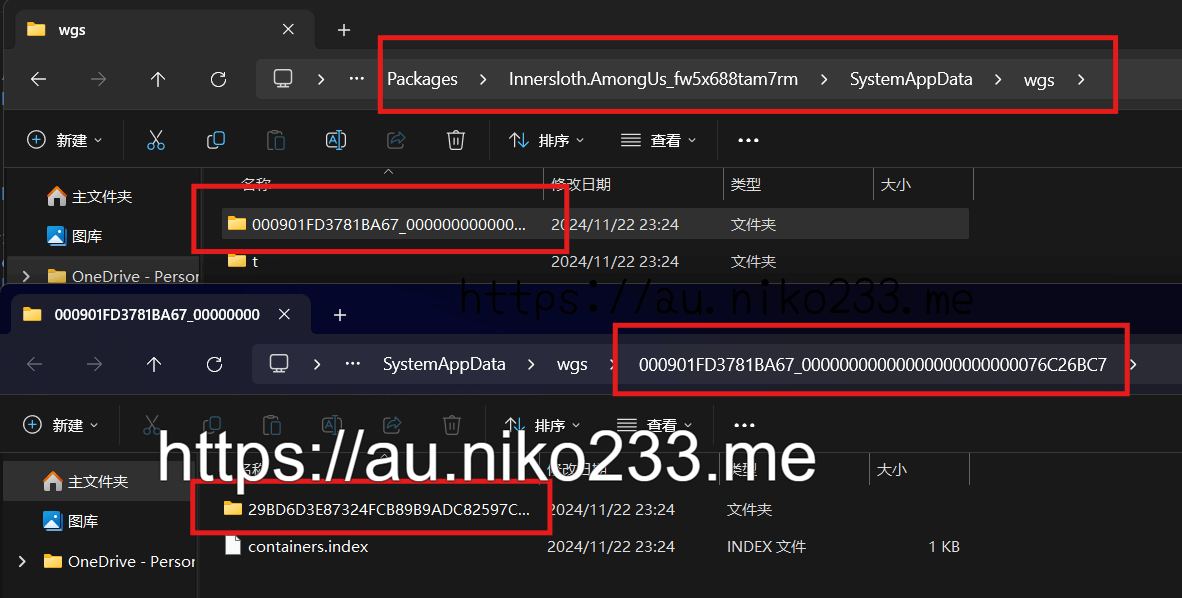
Find correct folder Find configuration file
After opening the folder to the deepest level, you will see several files also named with long numbers + letters. You need to open them one by one (using the system's built-in Notepad) to find the correct configuration file.
Tips
The correct file content is generally as follows:
{
  "CurrentRegionIdx": 4,
  "Regions": [
    // Your server configuration may differ from the example.
    {
      "$type": "StaticHttpRegionInfo, Assembly-CSharp",
      "Name": "<color=#16FFFF>清风服</color><color=#1B5EB7>[宁波]</color>",
      "PingServer": "nb.server.qingfengawa.top",
      "Servers": [
        {
          "Name": "http-1",
          "Ip": "https://nb.server.qingfengawa.top",
          "Port": 443,
          "UseDtls": false,
          "Players": 0,
          "ConnectionFailures": 0
        }
      ],
      "TargetServer": null,
      "TranslateName": 1003
    }
  ]
}
The file content may be compressed (no spaces or blank lines) when you open it. But this is expected behavior, so don't worry.
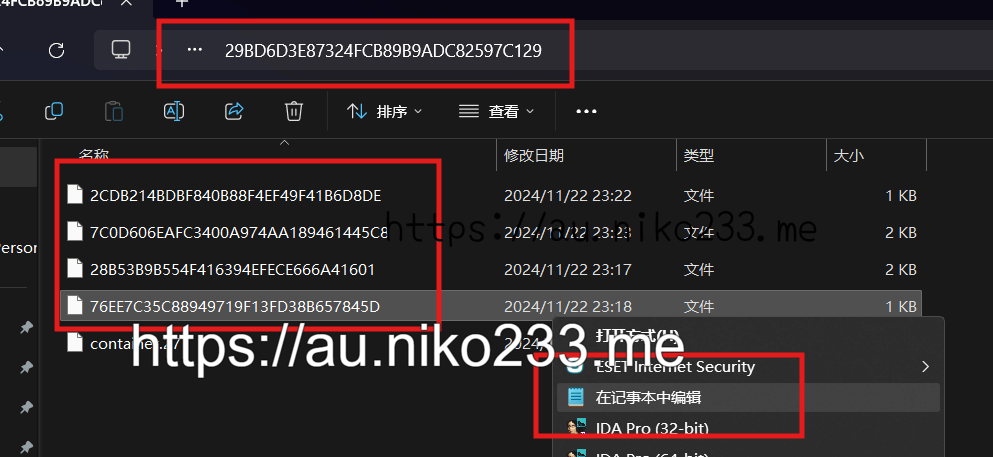
Find correct file Replace configuration file
Open the downloaded file, select all its content, copy and paste to replace the content in the opened configuration file.
Installation complete
If you purchased Among Us with different Microsoft Store accounts, each Among Us needs to be installed separately.
Mobile
App Store / Google Play
This installation method is from NikoCat233, Feng Among Us Server does not provide technical support for this method.
Open client
Open Among Us and keep it running in the background.
Install server
Click the card above, the browser will automatically jump to Among Us and install the server.
Can't find the server you want to install here?
Documentation may sometimes lag behind server configuration files, resulting in the server you want to install not being listed here. If you have some technical skills, you can install the server by splicing the installation link yourself.
The format of the installation link is:
amongus://init?servername=Server%20Name&serverport=Port&serverip=Server%20Address&usedtls=UseDTLSYou can download the server configuration file and open it to view the server configuration to obtain information such as server name, port number, server address, and whether to use DTLS. Then replace the server name, port number, server address, and whether to use DTLS in the link with the information you obtained, and then open this link in a browser.
If you have a mobile file manager like MT Manager, you can install the server by downloading the server configuration file and overwriting Among Us's configuration file. QingFeng has limited knowledge of the Android platform, so we do not provide a detailed tutorial for this method.
Installation complete
Starlight
QingFeng does not have Android devices, so we cannot update the installation tutorial, so this method may be outdated.
This tutorial was written using Starlight's first public beta version.
Open Starlight
Open Starlight and click to enter the Server page.
Add server
Click the + sign in the lower right corner and select Add custom server.
Fill in the following content in the pop-up page:
- Name:
清风服[宁波] - Address:
https://nb.server.qingfengawa.top - Port:
443 - Host:
QingFeng
Click Add server after filling in.
- Name:
Installation complete
Update
You can directly update the server configuration by following the installation tutorial.